How to Find Internal Links to a Page
Sometimes you need to know exactly which pages link to a specific URL on your site. That usually happens before a URL change, during a content update, or when you are trying to strengthen a page that needs more support.
If you cannot see those links clearly, it becomes harder to clean up redirects, fix weak pages, or improve your site structure. This is why knowing how to find internal links to a page matters.
This guide shows you the main ways to find internal links to a page, from simple manual checks to crawler-based methods and internal linking tools.
What Does It Mean to Find Internal Links to a Page?
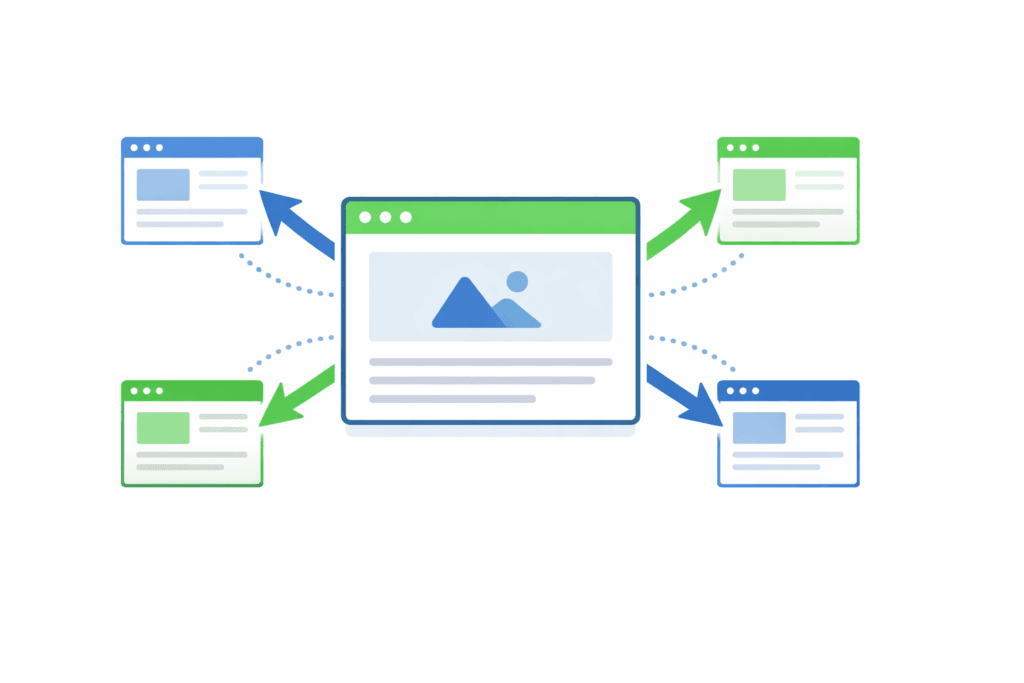
In this case, you are trying to find the pages on your site that point to one specific page.
Those are incoming internal links. They are different from outgoing internal links, which are the links that leave the page and point to other pages on your site.
Knowing both is useful, but most site owners usually want the incoming ones first. That is the data you need when checking page support, fixing old URLs, or reviewing your internal link analysis.
Why You May Need to Find Internal Links to a Page
There are several common reasons to check this.
- You want to update or delete a page without leaving old links behind
- You are fixing redirects after changing a URL
- You are checking whether an important page receives enough internal support
- You are tracking down pages that may be creating broken internal links
- You are running an internal link audit
Once you know where the links are coming from, it becomes much easier to update them or add new support where it is needed.
Method 1: Check Manually on Important Pages
The simplest method is to check manually.
Open the pages that are most likely to link to your target page. Then scan the content, menus, related-post areas, and category sections to see whether the page is linked there.
This method works best on small sites or when you only need to review a few pages. It is not the fastest option, but it can still help when you want to verify a link with your own eyes.
Method 2: Use Your Browser to Inspect the Page Source
You can also use your browser to inspect the page source or the HTML elements on a page.
Open a page that may contain the link. Then use your browser’s inspect tool or page source view and search for the target URL or part of its slug.
This method is more technical, but it can help when the link is not easy to spot in the visible content. It is also useful when you want to confirm that the link exists as a normal HTML link.
Google’s own link documentation says crawlable links are typically standard <a> elements with an href attribute. That is one reason checking the source can still be useful.
Method 3: Use Google Search Console
Google Search Console gives you a free way to check internal links to a page.
Go to the Links report, then look at the Internal links section. From there, you can open one of your pages and see which pages on your site link to it.
This is a useful starting point, especially if you want a quick view without using a paid tool. But it has limits. Google says the report shows only a sample of your links, not a complete list, and the tables can be truncated on larger sites.
So Search Console is good for a high-level check. It is not always the best option when you need every link.
Method 4: Crawl Your Site With a Spider Tool
If you want a fuller picture, a crawler is usually the better option.
Tools like Screaming Frog crawl your site and collect internal linking data page by page. Once the crawl is done, you can select a URL and open the Inlinks tab to see which pages link to it.
This method is especially useful on larger sites. It is faster than checking pages by hand, and it gives you a cleaner view of the pages linking to your target URL. Screaming Frog also lets you export that lower-window inlink data if you want to review it elsewhere.
Method 5: Use Internal Linking Tools or WordPress Plugins
If your site runs on WordPress or you manage a content-heavy site, a dedicated tool can make this much easier.

Internal linking tools can show incoming and outgoing links for a page, flag weak pages, and help you find linking opportunities without opening every post one by one.
If you work inside WordPress, some of the best WordPress internal linking plugins can surface this data directly in your dashboard. That saves time when you are updating content often or working across a large archive.
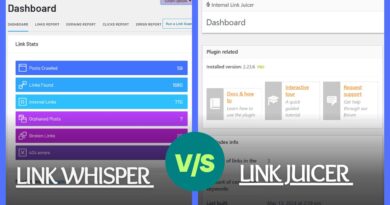
We already have a tool-specific version of this process in our guide on how to find links on a page with Link Whisper. This article is broader, so the goal here is to show the main options.
Which Method Is Best?
That depends on the size of your site and how much detail you need.
- Use a manual check if you only need to verify a few pages
- Use browser inspect or page source when you need to confirm a link in the code
- Use Search Console when you want a free overview
- Use a crawler when you want a more complete report
- Use internal linking tools when you want a faster workflow inside a growing site
On a small site, the first two methods may be enough. On a larger site, crawler-based methods and plugins usually save a lot of time.
What to Check After You Find the Links
Finding the links is only the first step. After that, check whether the links are actually helping the page.
- Are the links coming from relevant pages?
- Do the anchors describe the destination clearly?
- Are any of the links pointing through redirects?
- Are there too few links supporting the page?
- Do any linking pages need updated context or stronger placement?
That is where this starts to connect with your wider internal linking strategy. Finding the links is only the first step. You also need to check whether they are giving the page enough support.
Common Mistakes When Checking Internal Links
One mistake is relying only on Search Console and assuming the report includes every internal link. Google is clear that it does not.
Another mistake is checking link count without checking link quality. A page can have many internal links and still be poorly supported if the links come from weak or unrelated pages.
It is also easy to check the target page and forget the source pages. When you find the linking pages, review their anchor text and placement too.
Conclusion
There are several ways to find internal links to a page. You can check manually, inspect the source, use Google Search Console, crawl the site, or use a dedicated internal linking tool.
The best method depends on how large your site is and how much detail you need. If you want to make those links easier to navigate for readers, the next step is learning how to create anchor jump links.